Connect TradingView to cTrader
This guide shows how to make a TradingView alert place a real order on your own cTrader account. TradingView sends the alert to LOTUX over a webhook; LOTUX checks it against your secret, applies your risk rules, and the LOTUX cBot executes the order on cTrader. No cBot coding in C# - you install the ready-made LOTUX cBot once.
How it works
A TradingView alert is a message your chart or strategy fires when a condition is met. Instead of just emailing you, the alert can call a webhook - a URL that receives the message and acts on it. LOTUX is that receiver: it authenticates the alert with your secret, applies the risk rules you set (lot size, max risk, allowed symbols), and the LOTUX cBot executes on your cTrader account.
- You keep full control of the account - LOTUX only executes; it is not a broker.
- No cBot programming: you install the ready-made LOTUX cBot, not a strategy you have to code in C#.
- Your risk rules are applied on every alert before an order is placed.
Step 1 - Connect your cTrader account
Before an alert can trade, connect the cTrader account once with the LOTUX cBot.
Create a license
In LOTUX, add a cTrader account and create its license key (it looks like LTX-XXXXXXXX).
Download the LOTUX cBot
Download the LOTUX cBot (LOTUX.algo).
Add it to cTrader
Add the cBot via Documents -> cAlgo -> Sources -> Robots/ (or cTrader -> Automate -> Add -> from File).
Attach it to a chart
In cTrader, go to Automate -> cBots and drag the LOTUX cBot onto any chart.
Paste the license key
Set "LOTUX License Key" to your key and click Start. Leave the default connection settings as they are. Your account shows online in LOTUX.
Step 2 - Point your TradingView alert at LOTUX
Enable TV Bridge
In LOTUX, open the TV Bridge app for your cTrader account and copy its webhook URL and secret.
Create the alert
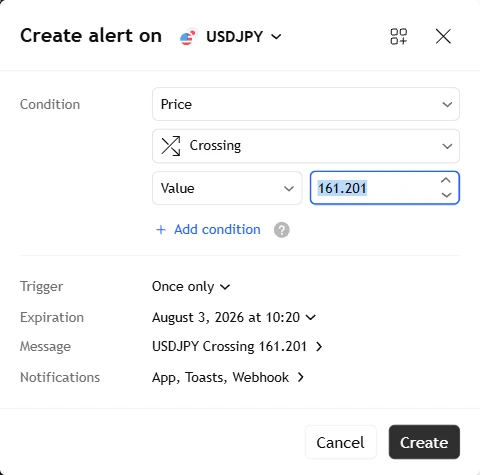
On your TradingView chart or strategy, create an alert and set the "Webhook URL" (Notifications tab) to the LOTUX URL.
Set the message
Paste the alert message template from your TV Bridge page (it carries your secret plus the action, e.g. buy / sell / close). The exact fields are in the TV Bridge docs.
Test it
Trigger the alert once. Your connected, online cTrader account receives the order and you see it in the cTrader terminal and in LOTUX history.
What works on cTrader
Everyday TradingView alerts work the same on cTrader as on MT5: enter (buy / sell), exit, set stop-loss / take-profit, and place a limit or stop pending order. Two honest notes:
- A few advanced External-Signals actions - stop-limit entries and modifying an existing pending order - are on MT5 today but not enabled on cTrader yet. This is a platform-level difference, the same for every cTrader account.
- The LOTUX cBot is a client of LOTUX: it connects and waits for your commands; it does nothing on its own without the server.
Run TradingView on your cTrader account
This is the exact flow LOTUX runs for every TradingView alert on cTrader. Run the cBot on your own machine - it executes on your own account.
Read the TV Bridge docs →Frequently asked questions
- Do I need to code a cBot in C#?
- No. You install the ready-made LOTUX cBot once and control it from LOTUX. Your TradingView alert sends the trade over a webhook; the cBot executes it on your cTrader account.
- Do I need a VPS to keep it running?
- The cBot runs wherever your cTrader terminal runs - your own machine (self-host). That machine needs to stay on with a stable connection for automation to run; a VPS is just another machine that stays on, so it is optional. Your cBot is what executes.
- Which order types work from a TradingView alert on cTrader?
- Market orders (buy / sell / close), stop-loss / take-profit, and limit / stop pending orders. A couple of advanced actions (stop-limit entries, modifying an existing pending order) are on MT5 today but not enabled on cTrader yet.